
How to Back Up PLC Programs Before Replacement
Backing up PLC programs before replacement is a critical maintenance procedure defined as copying controller logic, configurations, and parameters to secure external storage before swapping hardware. A failed or missing backup during a controller swap can halt production for hours or days, with no clean path to recovery. Plant engineers working with Allen-Bradley, GE Fanuc, Mitsubishi, or Omron systems all face the same risk: the program lives in the controller until someone deliberately saves it elsewhere. This guide covers the tools you need, the exact steps to follow, secure storage strategies, and the mistakes that cause the most damage.
What do you need to back up a PLC program safely?
Preparation determines whether the backup succeeds or fails. Showing up at the panel with the wrong cable or an outdated software version wastes time and creates risk.
Required hardware and software
Every backup operation requires a laptop running the correct vendor programming software. For Allen-Bradley ControlLogix and CompactLogix systems, that means RSLogix 5000 v13 or later, or Studio 5000 Logix Designer v20 or later. For GE Fanuc systems like the RX3i or Series 90-30, you need Proficy Machine Edition or the appropriate legacy software version. Connection cables vary by controller age: modern systems use Ethernet or USB, while older units require a serial RS-232 cable or a 1747-PIC adapter for SLC 500 series.

Software version mismatches are a common failure point. The programming software must match or exceed the firmware version of the controller you are connecting to. Confirm the controller’s catalog number and firmware revision before you open the software. Document both in writing before touching anything.
Access permissions and controller mode
The controller must be in REM (Remote) or RUN mode for a non-disruptive upload. Uploading in RUN mode is a non-disruptive operation that allows the controller to keep executing logic while you read its memory. Never switch a running production controller to PROGRAM mode without a planned shutdown. Confirm your user account has upload permissions on the controller, especially on newer systems with role-based access control.
Pre-backup checklist
| Item | Details | Status |
|---|---|---|
| Laptop with programming software | Correct vendor software, correct version installed | ☐ |
| Connection cable | Ethernet, USB, or serial per controller model | ☐ |
| Controller catalog number | Confirmed and documented | ☐ |
| Firmware version | Recorded from controller properties | ☐ |
| Controller passwords | Retrieved and stored securely | ☐ |
| Offline project file | Located on network or local drive | ☐ |
| Backup destination | Network share and USB drive both ready | ☐ |
Pro Tip: Keep a second copy of your programming software installer on a USB drive at the panel. If the laptop fails mid-job, you can reinstall on a spare machine without hunting for a download.
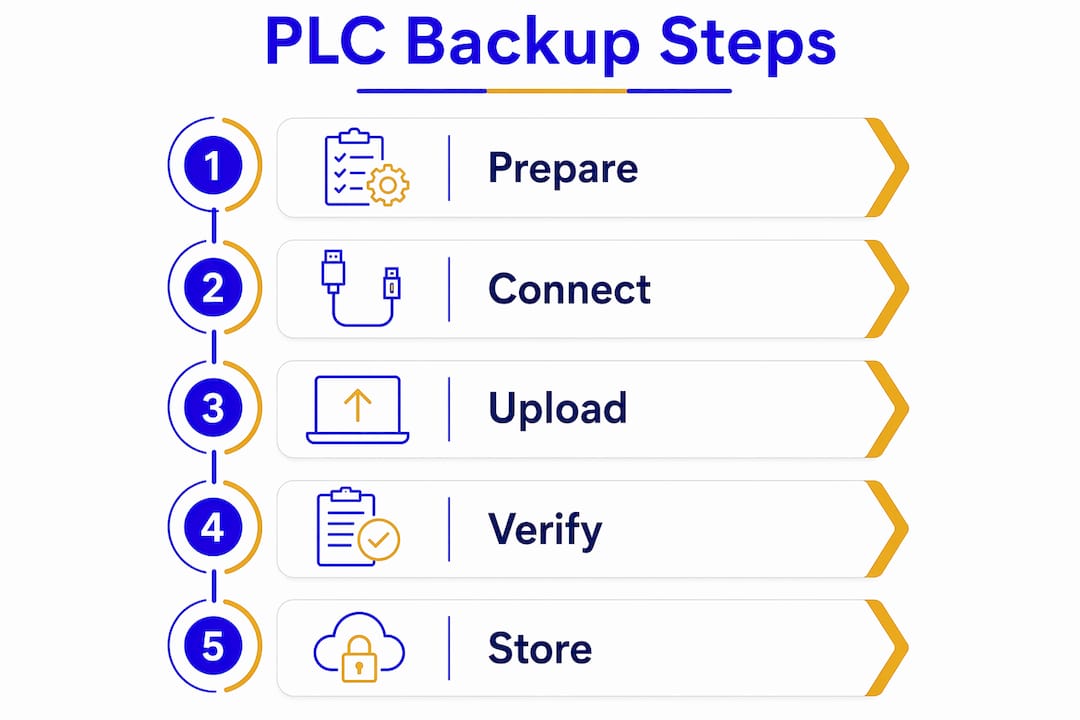
How to back up a PLC program step by step
The actual backup process follows a clear sequence. Skipping steps, especially verification, is where most engineers create problems they discover only during a crisis.
-
Connect the laptop to the controller. Use the correct cable and confirm the network address or COM port. In RSLogix 5000 or Studio 5000, use RSLinx Classic or the built-in communication driver to browse for the controller.
-
Go online with the controller. Select “Go Online” in the software. The software will display the controller’s current status, firmware version, and program name. Confirm these match your documented values before proceeding.
-
Upload the program from the controller. Select “Upload” to read the program from PLC memory to your PC. Uploading reads FROM the PLC to the PC. Downloading writes FROM the PC to the PLC. Confusing these two directions is one of the most damaging errors in PLC work, and it can overwrite a running production program instantly.
-
Save the uploaded file immediately. Use a clear naming convention: include the PLC model, location, and date. For example: “Line3_ControlLogix_L73_FW30.011_2026-06-15.ACD.” Save to your primary backup destination first.
-
Acknowledge what the upload does and does not capture. Uploaded programs lack rung comments, tag descriptions, and documentation metadata. That information exists only in the offline project file. The upload gives you the compiled logic. The offline file gives you the full picture.
-
Merge documentation if an offline file exists. Open the offline project file and compare it to the uploaded version. Copy rung comments and tag descriptions into the uploaded file if the offline version is current.
-
Exclude runtime device values. Runtime values should be excluded from backups to prevent restoring stale dynamic data that could trigger machine faults on startup after replacement.
-
Copy the saved file to a secondary location. Write the file to a USB drive or secondary network share immediately. Do not leave the job with only one copy.
Pro Tip: Run a “Compare” between the uploaded file and your offline project file before you leave the panel. Comparing uploaded and offline files confirms backup integrity and catches any discrepancy between what is running and what is documented.
How should you store and version-control PLC backup files?
A backup that exists in only one place is not a backup. Multi-tiered storage is the industry standard for PLC backups, designed to guarantee recovery even when one storage layer fails.
Storage tiers and recommended frequency
| Storage tier | Method | Recommended frequency | Pros | Cons |
|---|---|---|---|---|
| Primary | Secure network server or shared drive | After every program change | Fast access, centralized | Vulnerable to network outage |
| Secondary | Local USB drive or portable hard drive | Weekly | Offline access, portable | Easy to lose or damage |
| Archive | Off-site copy or cloud storage | Monthly | Disaster recovery protection | Slower to retrieve |
Back up after every program change, not just before replacements. A controller swap six months after the last backup means six months of undocumented changes are at risk.
File naming and version control
Use a naming convention that includes the controller model, physical location, firmware version, and date. Incremental versioning lets you roll back to a known good state if a recent change caused a fault. Store at least three historical versions per controller. Delete old versions only after confirming the current version is stable and tested.
Documenting controller passwords in a secure location is non-negotiable. Lost passwords require costly OEM intervention and can extend downtime from hours to weeks. Store passwords in a password manager or a locked physical document, never in the same folder as the backup file itself.
Pro Tip: Tag your backup files with the firmware version in the filename. When you source a replacement controller, you can match the firmware instantly without opening the file.
What mistakes cause the most damage during PLC backup and replacement?
Most failures during controller replacement trace back to a small set of preventable errors. Knowing them in advance is the difference between a two-hour swap and a two-day outage.
- Confusing upload and download. Upload reads FROM the PLC. Download writes TO the PLC. Pressing “Download” when you mean to back up will overwrite the running program with whatever is in your offline file, which may be outdated.
- Mismatched firmware or catalog numbers. Replacing hardware without matching firmware and catalog numbers exactly can cause catastrophic failure or prevent the program from loading at all. Changing the hardware catalog number without updating the project file corrupts I/O configurations.
- Skipping backup verification. Verification through file comparison is the most skipped step in PLC backup workflows. An unverified backup may be incomplete or corrupt, and you will not know until you need it.
- Ignoring battery procedures on legacy systems. Battery-backed RAM in older PLCs requires careful battery replacement with power on, per OEM instructions, to prevent unexpected program loss. Pulling a battery from a powered-down legacy controller can erase the program entirely.
- Storing only one copy. A single backup on a laptop that gets lost or fails leaves you with nothing.
- Skipping the offline project file. The uploaded file is a functional image of the running logic. It is not a complete project record. Maintaining the original offline master file alongside the upload is the only way to preserve full documentation.
Treat every controller replacement as a potential disaster recovery event. The backup you take today is the only thing standing between a planned maintenance window and an unplanned production shutdown.
For GE Fanuc systems like the Versamax PLC, firmware compatibility is especially critical when sourcing replacement hardware. Always confirm the exact catalog number and firmware revision before ordering.
Key Takeaways
Backing up PLC programs before replacement requires a structured process covering preparation, upload, verification, and multi-tier storage to guarantee full recovery after any controller swap.
| Point | Details |
|---|---|
| Prepare before connecting | Confirm software version, catalog number, firmware, and passwords before starting. |
| Upload, then verify | Upload the program from the PLC, then compare it against the offline file to confirm integrity. |
| Understand upload vs. download | Upload reads FROM the PLC; download writes TO the PLC. Confusing them can destroy a running program. |
| Use multi-tier storage | Store backups on a network server, a local USB drive, and an off-site archive. |
| Back up after every change | A backup taken before the last six months of changes is not a current backup. |
Why most plants are one controller swap away from a serious problem
Most plants I have worked with treat PLC backups as a pre-replacement task, something you do the day before the swap. That mindset is the root cause of most recovery failures. By the time a controller fails unexpectedly, the last backup is months old, the offline project file has not been updated since the original commissioning, and the engineer who knew the password left the company two years ago.
The real discipline is treating backup as a continuous process, not a one-time event. Every program change should trigger a backup. Every backup should be verified. Every verified backup should land in at least two physical locations. That sounds like overhead until the day a controller fails at 2:00 AM and the maintenance team needs to restore a program in under an hour.
The other thing plants consistently underestimate is the gap between an uploaded file and a complete project record. An uploaded program gives you the logic. It does not give you the comments, the tag descriptions, or the design intent. Maintaining the offline master file is the only way to preserve that knowledge. When the original programmer is gone and the controller needs modification, the offline file is the difference between a two-hour job and a two-week reverse-engineering effort.
The tools for doing this right have improved significantly. Modern programming environments make file comparison straightforward. Version control practices borrowed from software development now apply directly to PLC project management. The gap is not tooling. The gap is discipline and documented procedure. Build the procedure, train the team, and audit compliance quarterly.
— Monica
Industrialpartsusa has the replacement parts your backup plan depends on
When your backup is solid and the replacement controller is the only thing standing between you and restored production, sourcing the right hardware fast matters.

Industrialpartsusa stocks new, surplus, and remanufactured PLC hardware for Allen-Bradley, GE Fanuc, Mitsubishi, Omron, Horner Electric, and more, including legacy and obsolete units that OEMs no longer supply. Every unit ships with a one-year warranty and same-day shipping on in-stock items. If you are working with hard-to-find GE Fanuc RX3i, Series 90-30, or Versamax hardware, explore the GE Series 1 maintenance guide for compatibility details. For a broader look at sourcing options when standard channels fall short, the obsolete parts alternatives page covers what is available and how to evaluate quality before you buy.
FAQ
What does “back up a PLC program” mean?
Backing up a PLC program means uploading the controller’s logic and configuration from its memory to a PC and saving it to external storage. The goal is to preserve a recoverable copy before any hardware replacement or firmware change.
Can I upload a PLC program without stopping production?
Yes. Uploading in REM or RUN mode is non-disruptive and allows the controller to keep executing logic during the backup. Never switch to PROGRAM mode on a running production line without a planned shutdown.
What is the difference between upload and download in PLC programming?
Upload reads the program FROM the PLC to the PC. Download writes the program FROM the PC to the PLC. Confusing the two can overwrite a running production program with an outdated file.
Does an uploaded PLC file contain all documentation?
No. Uploaded files contain compiled logic but lack rung comments, tag descriptions, and other documentation metadata. Full documentation exists only in the offline project file, which must be maintained separately.
How many backup copies should I keep for a PLC program?
Keep at least three copies: one on a secure network server, one on a local USB drive or portable drive, and one off-site or in cloud storage. Back up after every program change, not just before planned replacements.